

Install additional voice packages in Windows 11, for use with the Web Speech API
In order to add new languages, navigate to Settings > Time & Language > Speech.
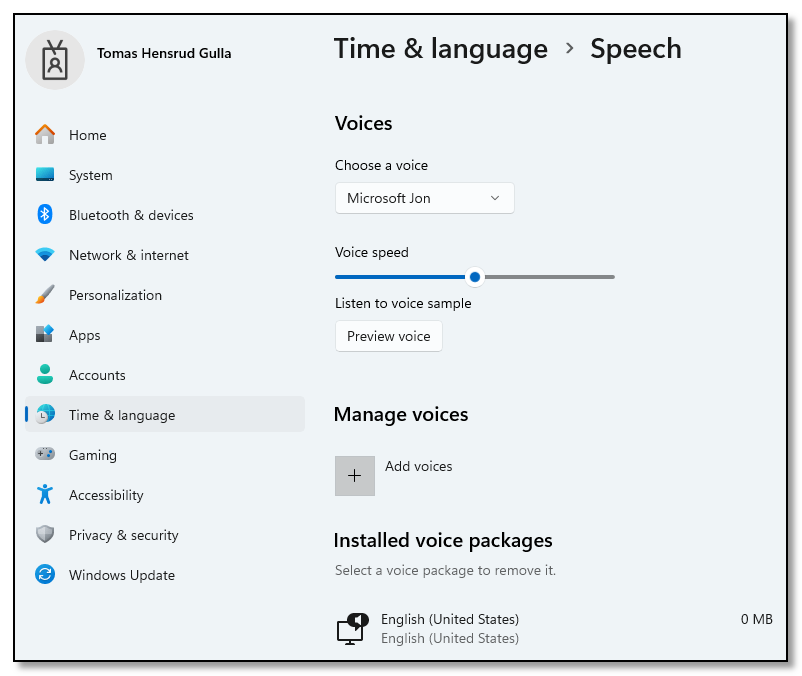
I was not able to install the Norwegian language pack from the UI. The package was listed as 0 MB, and did not install.

The solution was installing the packages using PowerShell (with admin rights). Search for language packages like this:
Get-WindowsCapability -Online | ? Name -like *Speech*And install the Norwegian language pack like this:
Add-WindowsCapability -Online -Name Language.TextToSpeech~~~nb-NO~0.0.1.0The installation took a long time, but at least there was a progress bar:

After the installation had finished, the installed language pack did show up in the UI.
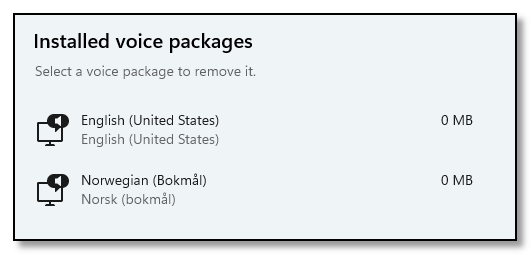
And the Norwegian voice was available for use with Web Speech API in the browser.
Found this post helpful? Help keep this blog ad-free by buying me a coffee! ☕